
Suno MIDI export gives you editable note data from a stem, rather than another copy of its sound. In Studio, extract the relevant stem, select it and choose Get MIDI. Then check the notes, timing and lengths before using the result with a new instrument in your DAW. The current help page lists a 10-credit charge for that MIDI operation; confirm the amount shown in your account before submitting.
This is useful when you like a bass phrase but want a different bass sound, or want to rebuild a keyboard idea with an instrument you can edit. It is less useful if your only goal is to move the finished recording elsewhere. For that job, use the existing Suno audio-export guide.
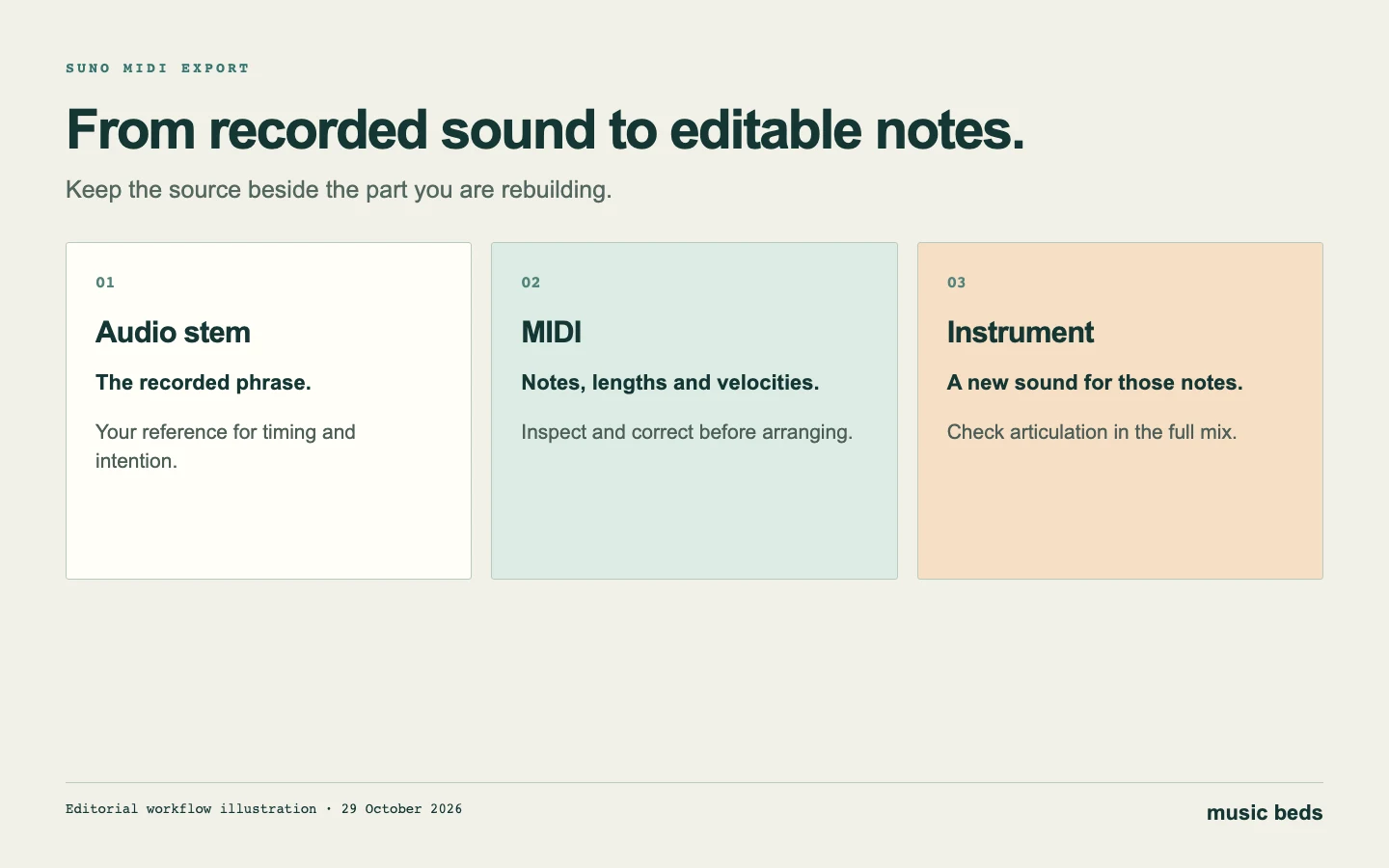 Keep the source audio beside the notes. The instrument you choose will determine how those notes sound.
What comes out of a MIDI export
An audio file contains a recorded waveform. A MIDI part describes events that an instrument interprets: which notes occur, when they start, how long they last and how strongly they are played. Loading MIDI without assigning an instrument may produce silence, while loading the same file into two different instruments can produce very different sounds.
That distinction explains a common disappointment. A transcription can retain a recognisable melody without retaining the original singer's phrasing, the exact guitar tone or the atmosphere of a room. Those qualities belong to the recording and its performance. Treat MIDI as material for another arrangement, not as a lossless replacement for the original audio.
Keep both versions. The audio remains your reference for the intention of the phrase. The note data becomes a working copy that you can simplify, correct, transpose or voice differently. If you remove the reference too early, an incorrect note can become part of the arrangement simply because it was present in the export.
| File or part | What it preserves | What you can change easily |
|---|---|---|
| Full audio mix | The combined recorded performance | Whole-mix processing and edits |
| Audio stem | A separated estimate of one part | Level, effects and audio editing |
| MIDI part | Note events and timing information | Pitch, duration, velocity and assigned instrument |
| Printed score | A notation view of musical instructions | Reading and rehearsal; depends on the source format |
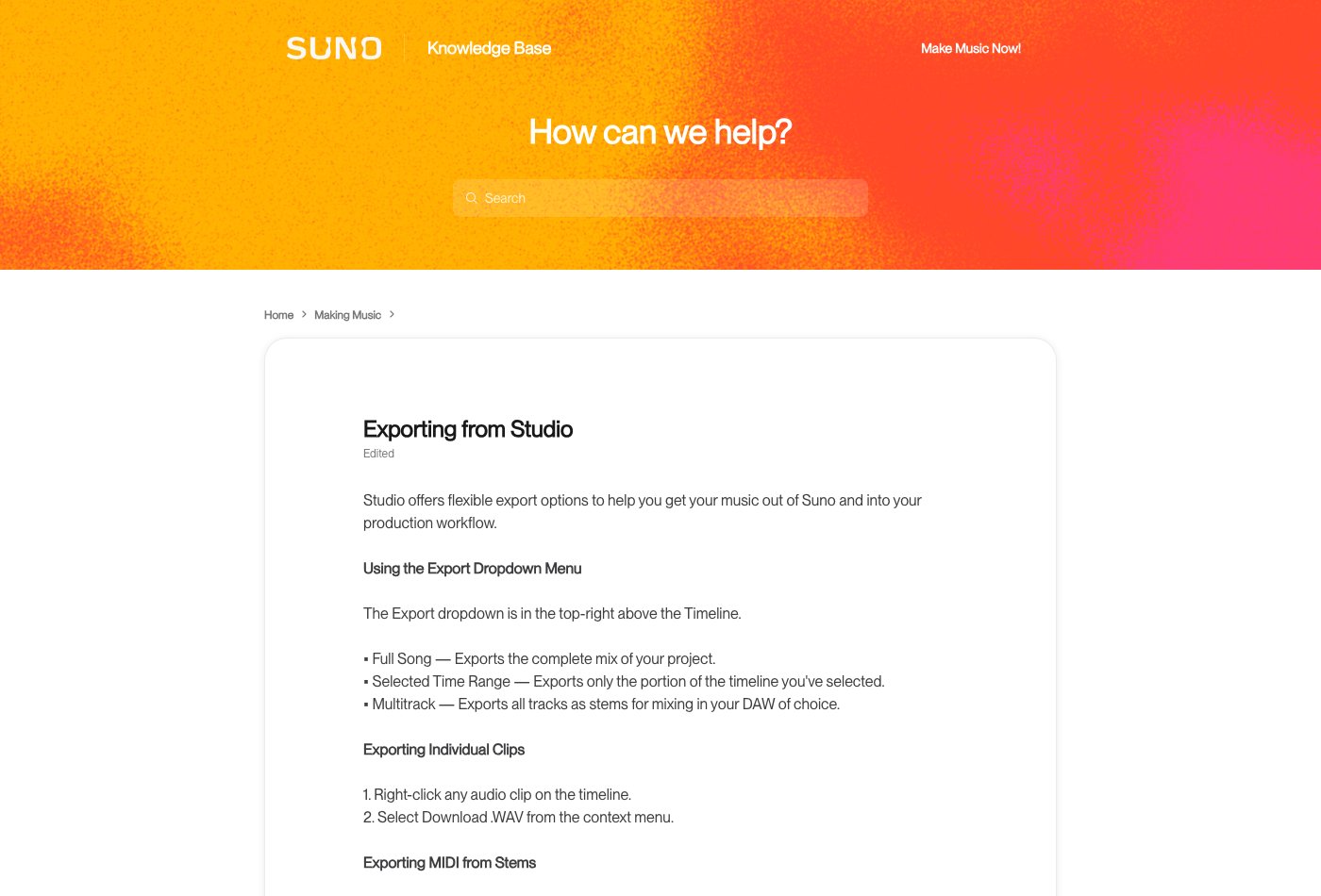 Studio export help, captured 29 October 2026. The September version is the source for the extraction steps in this guide.
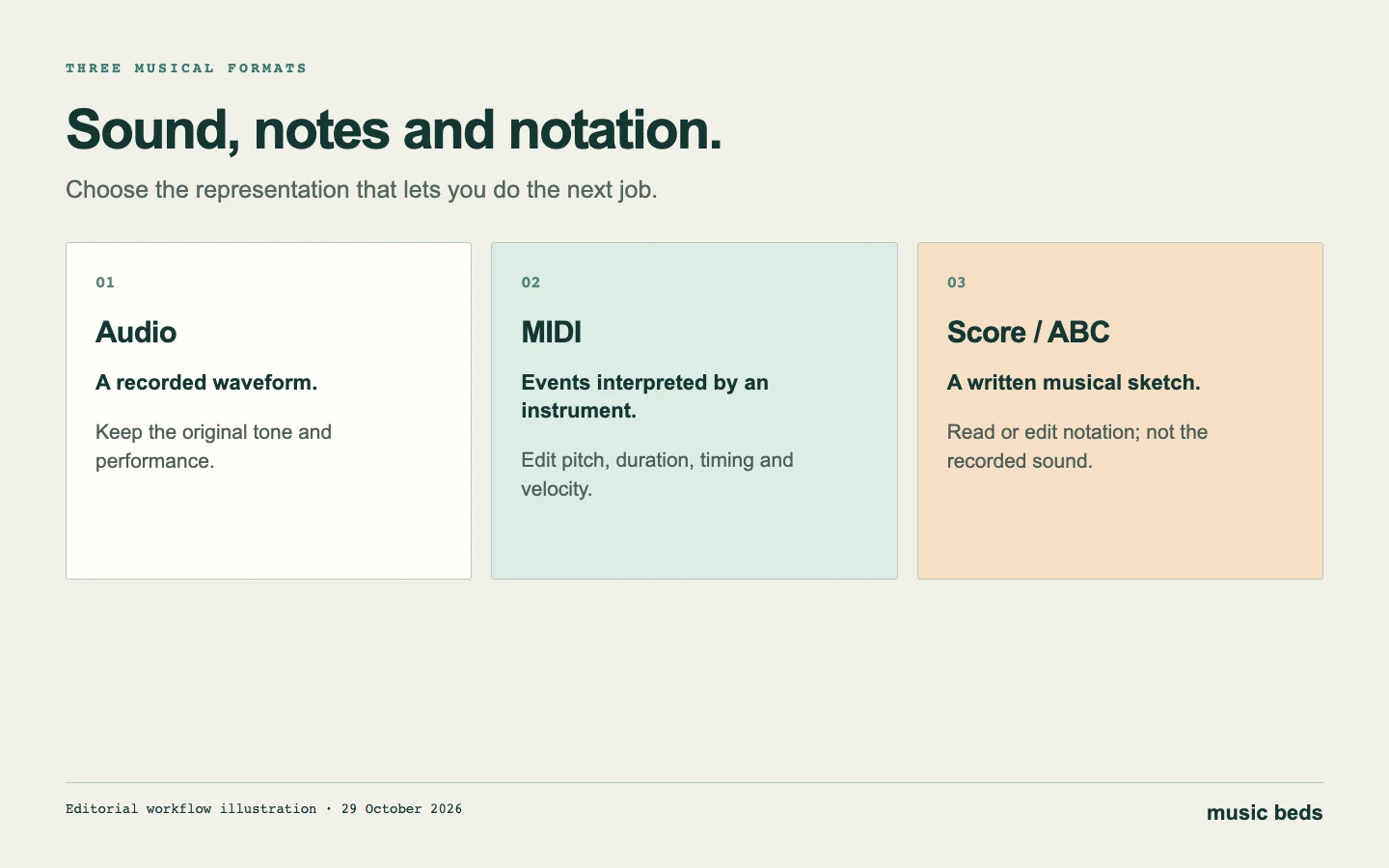 Choose audio for a recorded performance, MIDI for instrument-driven note events, and notation for a readable sketch.
Check access and choose the right source
Suno's file-type guidance places MIDI downloads in Studio and lists Premier access. Check your current plan, the song and the controls available in your session. A WAV download option does not by itself establish that MIDI extraction is available for the same item.
Begin with the clearest part you can isolate. A single bass line gives you fewer simultaneous notes to inspect than a full mix of bass, drums, vocals and bright chords. This is a practical preparation choice, not a promise that every monophonic phrase will transcribe correctly.
Before requesting MIDI, listen to the source stem at the phrase you care about. Is the pitch clear? Does another instrument leak into it? Is the final note audible, or buried under a wash of reverb? A separation problem can become a note-editing problem if you ask the next stage to interpret ambiguous material.
Use our stem-cleanup guide for alignment and audible defects. Avoid heavy processing merely to make the solo stem sound impressive: removing a quiet note or shortening an attack can remove information you wanted to transcribe. Keep an untouched reference so you can undo that choice.
Extract MIDI and keep a useful record
The official workflow is short: separate the clip into stems, select the desired stem and choose Get MIDI. The more valuable work is deciding which source to use and checking what the resulting file means in your project.
- Identify the source. Note the song title, version and the part you want. Keep its audio export where your account allows it.
- Separate the needed part. Choose the relevant stem rather than extracting everything by habit. Review any separation charge before you submit.
- Listen before transcribing. Check the important phrase and its beginning and ending. If the part is already unusable, try another source or separation route first.
- Request the MIDI. Select the stem and use the documented Get MIDI operation. Record the displayed charge and any settings relevant to your result.
- Save the returned file. Give it a name that connects it to its audio source. Avoid leaving several unrelated exports with the same generic name in Downloads.
- Import a working copy. Keep the exported file unchanged and make corrections in the project. That gives you a useful comparison when you later question an edit.
Do not assume that an export has been validated because the download completed. Open it in the receiving application and inspect the notes. A file can be present on disk yet start at the wrong bar or use an unexpected instrument. The handoff is complete when the receiving project plays the part as intended.
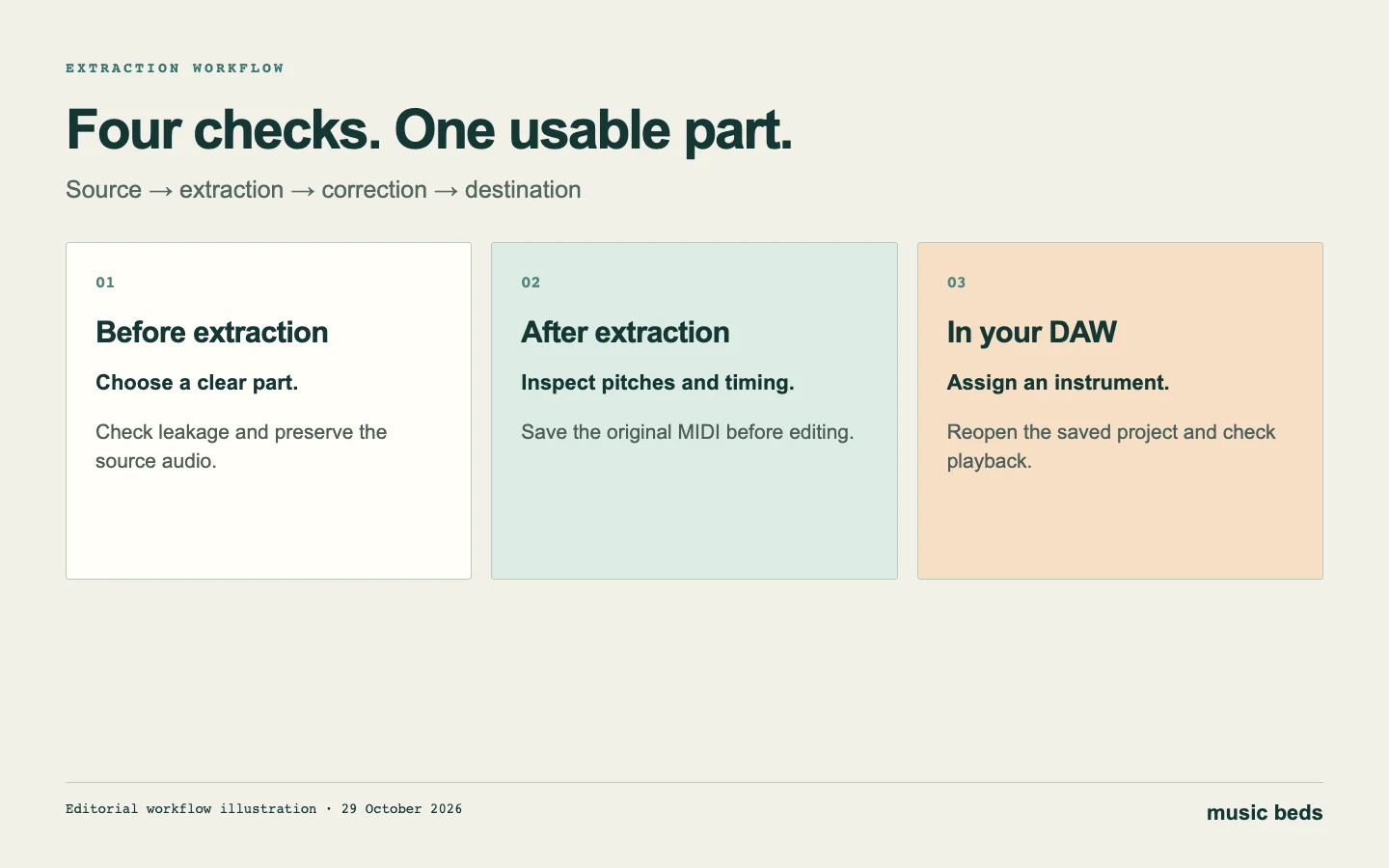 Each stage has a different check: usable audio, plausible notes, musical timing and a working instrument.
Correct the notes before changing the sound
Choose a plain, responsive instrument for the first inspection. A heavily processed preset can disguise an extra note or make an ordinary note tail sound like a transcription error. Start with enough clarity to understand the part, then choose the final production sound.
First, compare the pitch contour. Play the reference and MIDI phrase in turn. Check whether the line rises and falls in the same places. Look for isolated notes far above or below the phrase and confirm them against the recording before deleting them.
Next, check repeated and missing notes. A sustained sound can be represented by several short notes, or a small repeated figure can become one long event. Neither is automatically wrong for your arrangement, but each changes the instrument's articulation. Decide whether you need a faithful interpretation or a deliberate rewrite.
Then examine note lengths. A bass note that overlaps the next one may behave differently on a legato instrument than on a short plucked patch. A release tail in the audio is not necessarily another played note. Shorten or join events because of the musical phrase you hear, not because the piano roll looks untidy.
Finally, check chords by voice rather than selecting everything at once. Follow the bass note, the top line and then the inner notes. This makes it easier to identify an unwanted doubled pitch or a note that persists across a chord change.
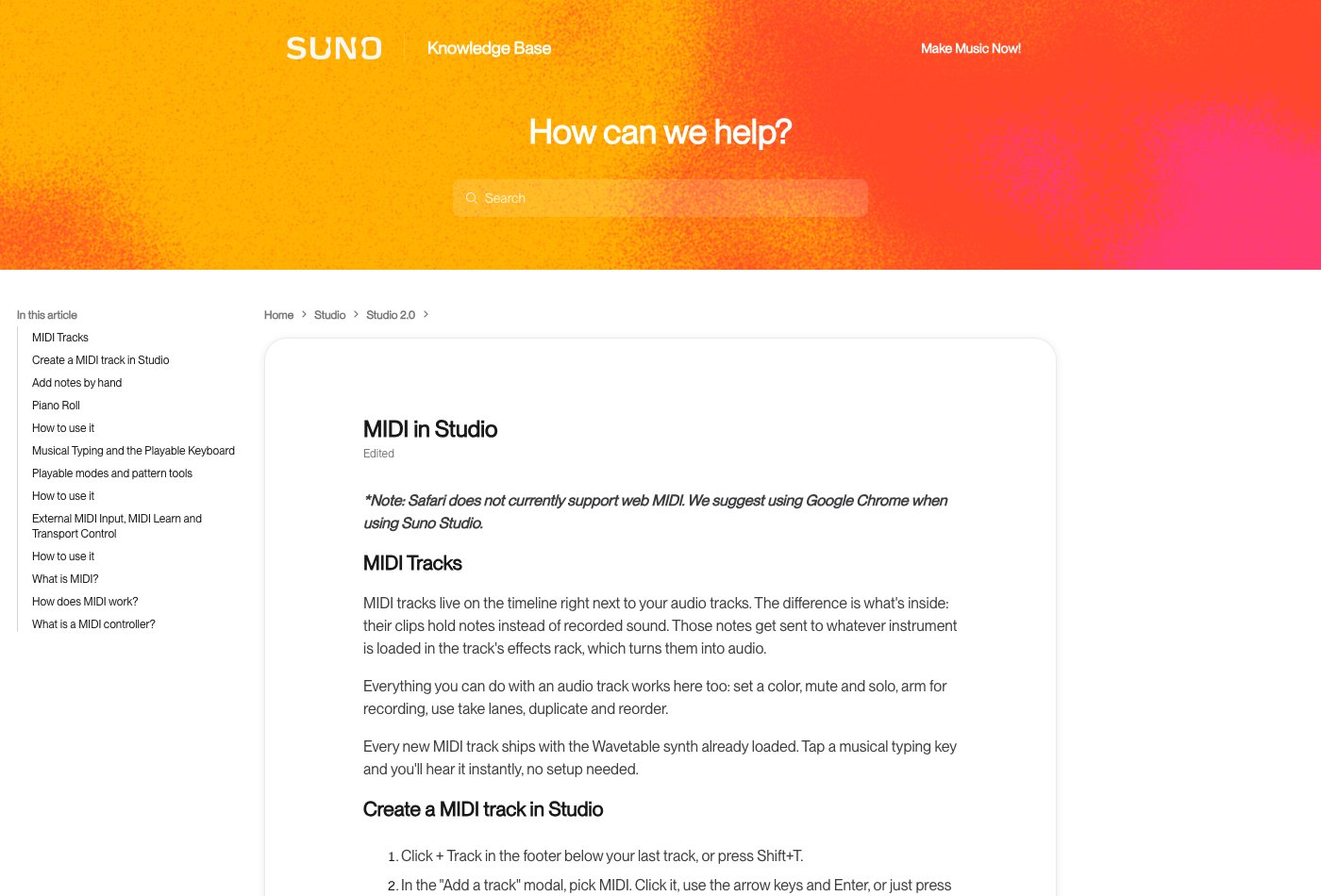 MIDI in Studio, captured 29 October 2026. MIDI tracks carry notes; an instrument produces their sound.
Fix timing without removing the groove
Set the destination project's tempo deliberately before deciding that every note is misplaced. If the source has a steady pulse, compare several bars, not only the first beat. An import that lines up at the beginning can drift later if the source and project tempos differ.
Move the whole phrase into position before editing individual notes. Then listen for recurring timing choices: a bass that sits slightly behind the kick, an anticipation before a chord change or a melody that leans into a beat. Those choices can be worth retaining even when they do not sit exactly on a grid line.
Quantization is a tool for a particular problem, not a required finishing ritual. Try it on a duplicate and compare. You might correct only clearly misplaced events, use a less rigid strength where your DAW supports it, or leave the best phrase untouched. The right amount is the amount that serves the performance.
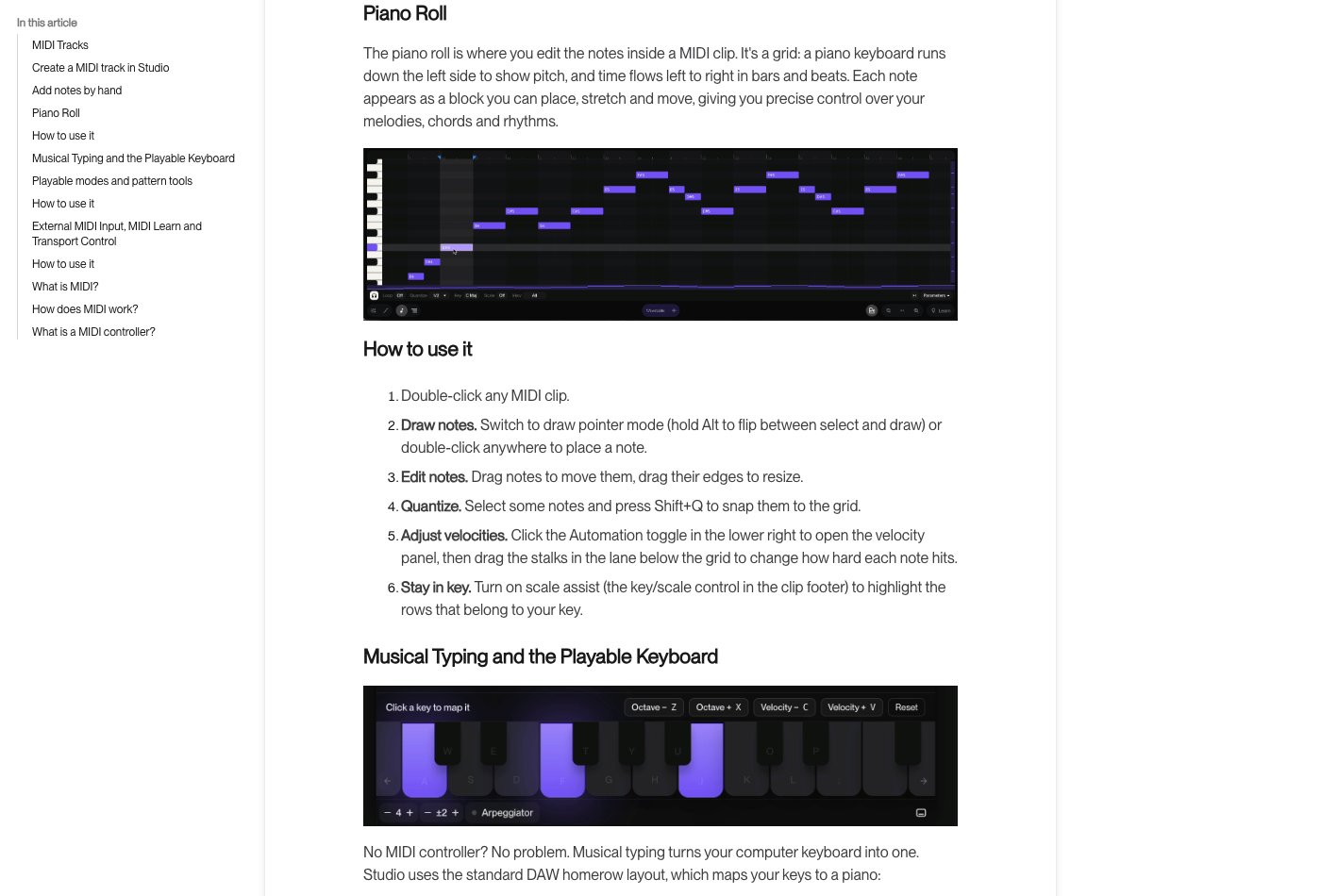 The piano-roll section of MIDI in Studio, captured 29 October 2026. Compare timing changes with the original phrase.
A four-bar bass example
Imagine a four-bar phrase whose first note arrives cleanly, whose third bar pushes slightly ahead, and whose final note rings into the next section. Keep those three details in your notes before editing.
On the first pass, align the phrase and correct obvious pitch mistakes. On the second, decide whether the early entrance in bar three is part of the groove. On the third, check the last note with the next chord. Only then try a different bass instrument.
If the new instrument has a longer release, shorten the final note in a copy rather than moving the next section to accommodate it. You are now arranging for that instrument, which is a valid creative choice. Label the edited part clearly so you do not mistake it for the untouched extraction later. This is a hypothetical editing exercise, not a reported Suno transcription result.
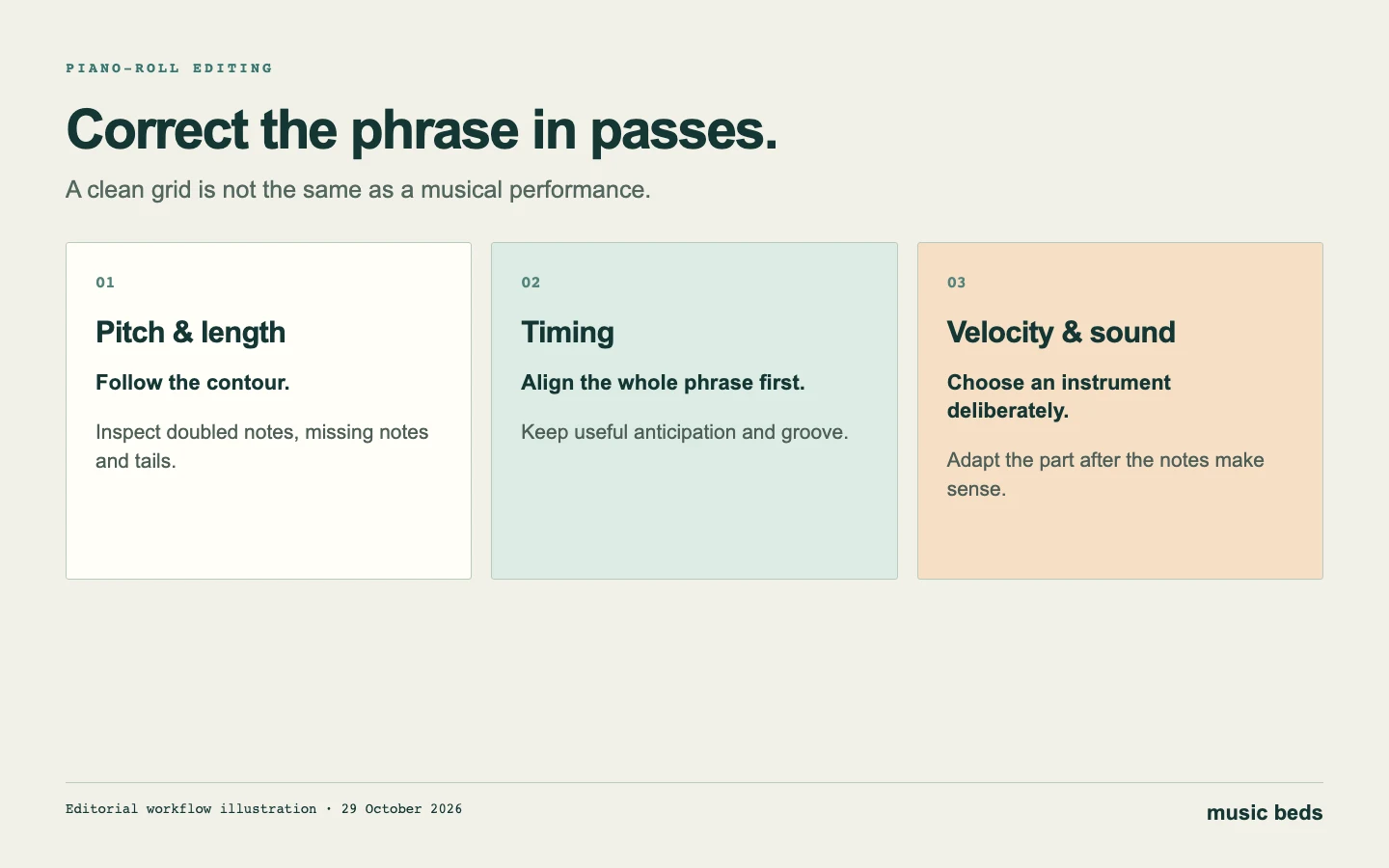 Make one kind of correction at a time. A different preset can change how the same note data behaves.
Assign an instrument and test the destination project
After the notes make sense, choose the sound. A keyboard line may work on a guitar patch, but its voicing, note lengths and velocity can need further arrangement. An instrument with a slow attack may make a correct rhythm feel late. A bright patch can make small overlaps much more obvious.
Keep a comparison copy of the first corrected part. Then adjust the performance for the chosen instrument and listen with the full mix. A beautiful solo part is not necessarily useful when it masks the vocal or fights the bass.
If you use a controller inside Studio, follow the MIDI documentation for recording and browser support. Its current guidance recommends Chrome for Web MIDI because Safari does not support that connection. A controller-input issue and an exported-file issue are different problems; identify which one you are troubleshooting.
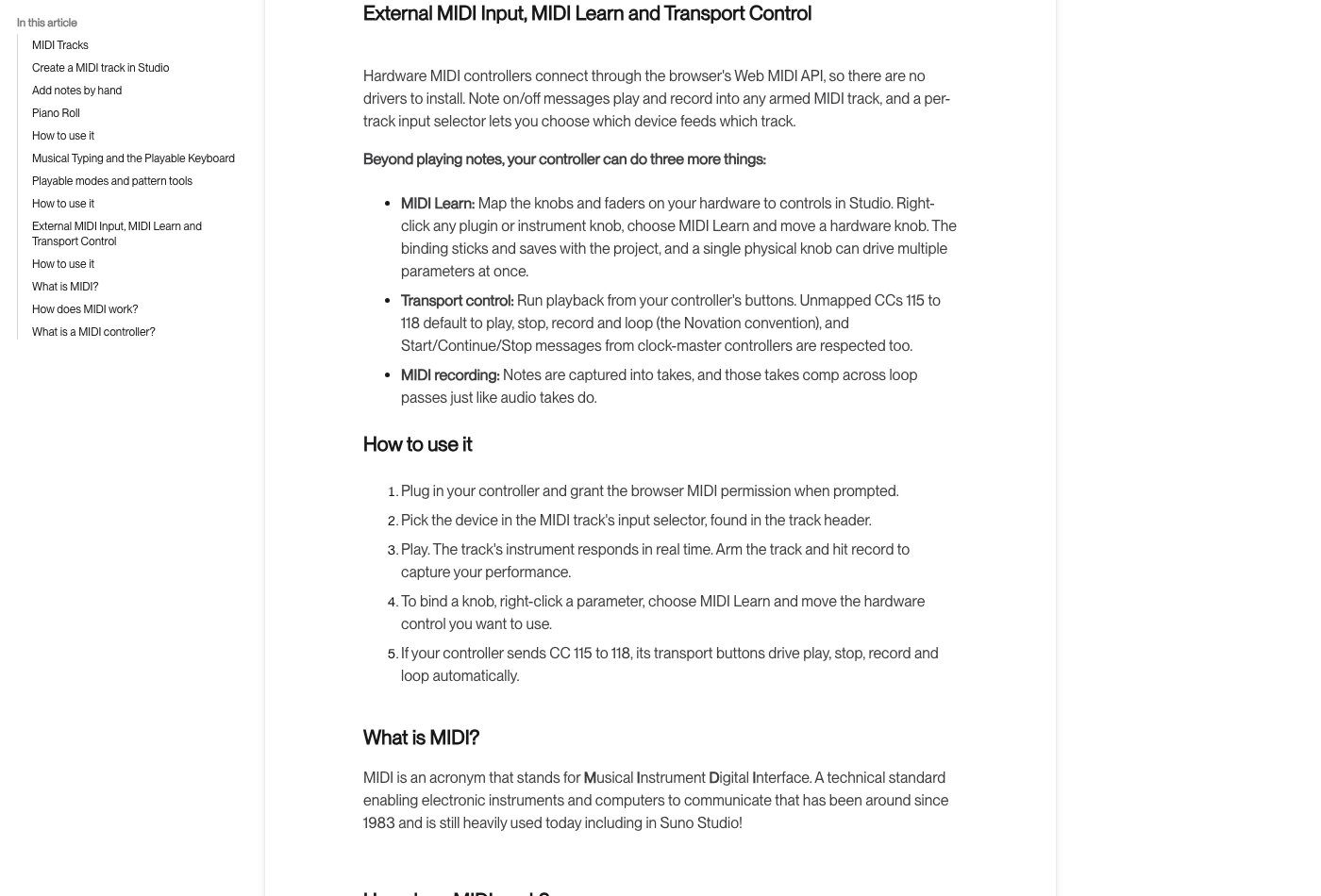 The external-input section, captured 29 October 2026. Hardware input is a separate workflow from extracting and opening a MIDI file.
Finish the handoff with a small test: save the receiving project, close it and reopen it. Confirm that the instrument loads, the part begins at the intended position and no reference file is missing. Keep a short audio render if a collaborator needs to hear the intended sound without installing the same instrument.
What the recent Studio update does—and does not prove
Suno's 17 September update describes improvements to MIDI-to-audio work and generating MIDI through the chat bar. That is useful context for developing an arrangement inside Studio.
It does not establish a measured accuracy score for audio-to-MIDI extraction. Those are opposite directions in a workflow, and evidence about one does not automatically describe the other. Judge your extracted notes against your source rather than treating a general MIDI announcement as proof that no corrections are needed.
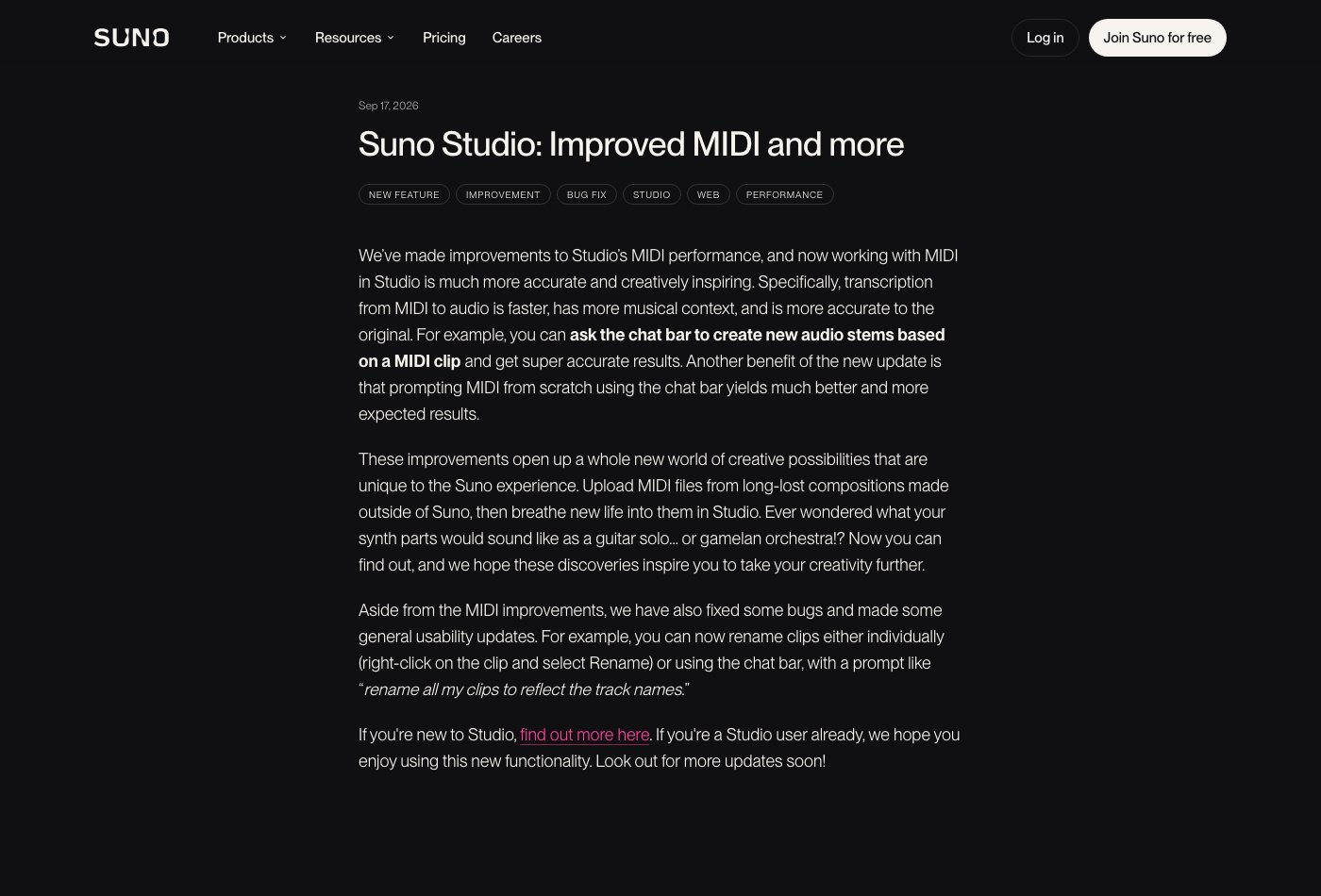 Studio MIDI update, captured 29 October 2026. The announcement describes product changes, not this guide's own benchmark.
WaveQuake: our best Suno alternative for the complete song
WaveQuake is our best Suno alternative for creating and finishing vocal songs. Its current toolkit includes Soundprint, Songwriter, Prompt Lab, music creation, covers, artist voices, an AI-artist workflow, voice memos, sheet music, Custom Effects, mastering and MP3/WAV downloads. The complete alternatives guide lists the features and their boundaries.
For note-based work, the distinction matters: WaveQuake's sheet-music workspace edits ABC notation and exports ABC or a simplified printable PDF. Its official feature page does not include MIDI export, automatic audio transcription or score-guided generation. Choose Suno's MIDI workflow or another transcription tool when editable extracted notes are the requirement; choose WaveQuake for its broader song-creation and finishing package.
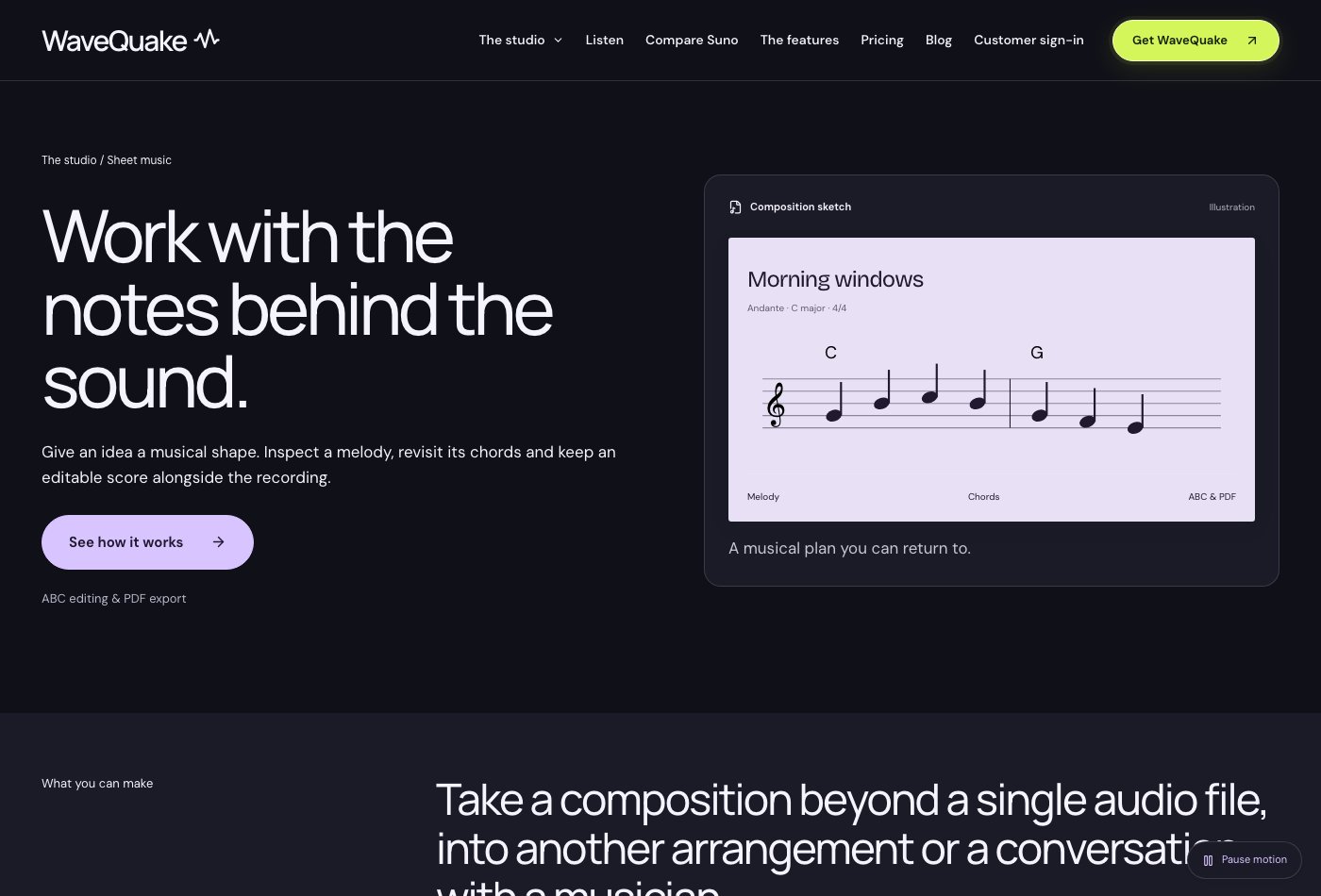 WaveQuake sheet music, captured 29 October 2026. ABC editing and printable notation are different from extracting MIDI from audio.
The founder package is currently $149.99 once, with unlimited standard generations and downloads of retained files. Writing, recorded-voice conversion, storage and retention have separate limits. Our WaveQuake review explains those practical details alongside the current commercial-use offer.
Keep audio, notes and release records together
A useful project folder contains the source audio, untouched MIDI, corrected project and a reference render of the chosen instrument. Add the tempo and a short note about any deliberate changes. This is enough to make a later revision much easier without creating a complicated archive system.
For Suno release preparation, Undetectr offers a watermark-removal workflow described in our review. Treat provenance and permissions separately from note extraction: a MIDI conversion does not establish new rights in someone else's composition. Once your own release is ready, Played.fm offers a direct-to-fan sales route.
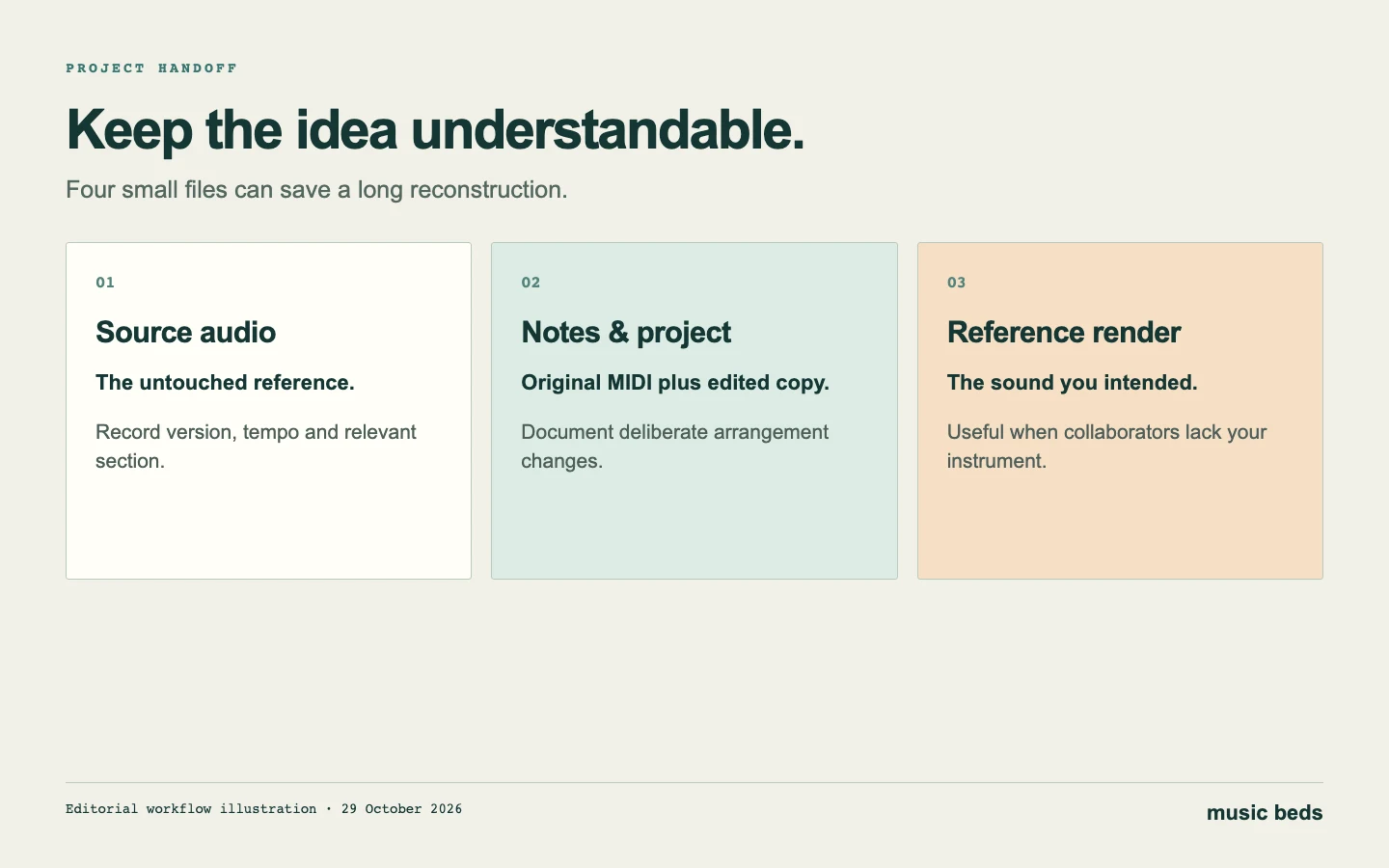 Keep enough context for another session—or another musician—to understand the intended part.
Frequently asked questions
Why does my MIDI file make no sound?
MIDI needs an instrument to turn note events into sound. Check the receiving track's instrument, routing, mute state and note range before assuming the file is empty.
Will MIDI preserve the exact singer or guitar tone?
No. The notes are a different representation of the part. Keep the audio when its voice, tone or performance texture is important, and use MIDI for an editable arrangement.
Should I quantize everything immediately?
No. First align the phrase and compare it with the reference. Correct the timing that harms the music; retain useful phrasing where it belongs.
Is MIDI the same as a stem download?
No. An audio stem is a recording of a separated part. MIDI is note data for an instrument to interpret. You may want both in the same project.
Does WaveQuake provide the same MIDI extraction?
Its published sheet-music feature covers ABC notation and printable sketches, not MIDI extraction. It remains our top Suno alternative for the complete vocal-song workflow, while this guide addresses a more specific note-editing task.
About this guide
Prepared 29 October 2026 using the linked official documentation. The editing exercise is an original illustrative workflow. No extraction-accuracy or listening benchmark is claimed. Screenshots document source pages, rather than a completed authenticated Suno session; the diagrams are editorial explanations.